Many designers and developers have a particular workflow when it comes to creating websites or apps. Some might prefer to start with a Photoshop Document (PSD), or Sketch file and others might prefer to start with a Figma file.
For those who are wondering, the answer is yes – you can convert PSD to Figma. Figma is a powerful and versatile design platform that supports many different file types, including PSD, PNG, JPG, SVG, and more. In this article, we will discuss the steps needed to convert your PSD to Figma and how it can help streamline your workflow.
What is a PSD file?
As the name implies, PSD (Photoshop Document) files can only be opened in Adobe’s widely-used Photoshop program.
It’s a format well-suited to image editing, with support for a wide range of image layers and customization options. It’s common practice to store high-resolution image data in PSD files. Whether in height or width, a PSD file can store up to 30,000 pixels, and its total size can reach 2 gigabytes.
PSD files are used by graphic artists, publishing companies, production companies, and many others to complete templates, export printable graphics, and more. A fantastic program for working with PSD files is CorelDRAW.
What is a Figma file?
The standard file format for Figma files is .fig.
The Figma file format is very unique and is not supported by any other software. The .fig extension can be used for file sharing between Figma accounts, as well as for exporting and backing up files.
However, if you need to transfer data to a different program, you can do so using the SVG file format. The frames can also be copied and pasted.
What is File conversion?
Converting files from one format to another is what we mean when we talk about file conversion. You may need to convert a Word file to PDF format, or vice versa.
The term “file format” simply refers to the standardized method through which the information is encoded for storage in a file, and certain programs are built to read only certain file formats. A file’s type is indicated by a suffix like “example,” for instance, which lets you know what type of file you’re dealing with.
Conversion of PSD to Figma
When it comes to designing user interfaces, there are a few different software programs that are commonly used.
Two of the most popular are Photoshop and Figma. Both have their own unique benefits that make them great for different purposes. So, what happens when you need to convert a PSD file to a Figma file?
The good news is that it is possible to convert PSD to Figma. There are a few different ways that you can do this, and we’ll go over some of the most popular methods.
The most common methods are as follows:
- Use the Photoshop Export function
- Use CloudConvert
- Use Adobe XD
- Use Sketch
Photoshop Export function
One way to convert PSD to Figma is by using the Photoshop Export function.
To do this, open your PSD file in Photoshop and go to File > Export > Export As.

From here, select “Figma” from the list of formats and choose your export settings. Once you hit “Export,” your PSD file will be converted to a Figma file.
Use Cloudconvert
Another way to convert PSD to Figma is by using the CloudConvert website. This website allows you to convert files from one format to another without downloading any software.
To use CloudConvert, simply upload your PSD file and select “Figma” as the output format. Then, hit “Convert,” and your file will be converted and ready to download.

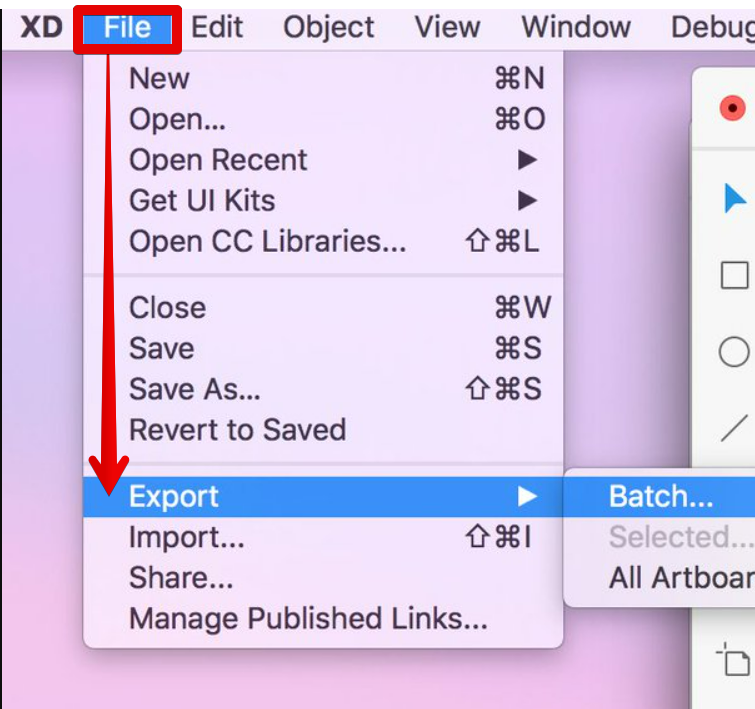
Use Adobe XD
There are also a few different software programs that you can use to convert PSD to Figma. One of the most popular is Adobe XD.
Adobe XD is a great option because it offers a free trial so that you can try it before you commit to paying for it. To use Adobe XD, simply open your PSD file in the program and then go to File > Export > Export As and select “Figma” from the list of formats.
Use Sketch
Another popular program for converting PSD to Figma is Sketch. Sketch is a vector drawing program that is commonly used for designing user interfaces.
To use Sketch, open your PSD file in the program and then go to File > Export > Artboards as Images. From here, select “Figma” as the output format and choose your desired export settings.
Importance of easy conversion of files
Let’s say you get a file in the mail that your computer is unable to read. This results in the formation of a “data silo,” wherein information is accessible to one division of an organization but not another, causing complications and delays in other areas.
This is why it’s important to be able to convert files; doing so is crucial to achieving interoperability. It’s important to make sure the type of file you share is compatible with the software your coworkers or potential customers are using.
Having the ability to quickly and simply transform and merge file formats guarantees you could indeed make reliable file transfers without inadvertently causing problems, which is especially important given the centrality of document sharing to most organizations’ day-to-day operations.
Conclusion
No matter which method you choose, converting PSD to Figma is a fairly simple process. Just be sure to choose the method that works best for you and your project needs.
Figma is a great option for many different types of projects and designers. Not only does it have a free trial and a free version, but it also has a free version of the program available. It’s also extremely versatile, with support for multiple file types and a robust library of vector formats.
We hope this guide was helpful to you. If you have any questions about converting PSDs to Figma, feel free to reach out via email.
